Archive for the ‘Linux’ Category

Citrix Client on Ubuntu 10, 64 Bit.

Wednesday, May 26th, 2010

Unfortunately, there is no 64 Bit package for the Citrix client 11. So, it is a smaller challange to install the client using 32 bit libraries. There are a couple of nice tutorials on the net. The one which helped me most was the how to by I can has linux. Basically it describes, that one should download the current 32 Bit Linux client from the Citrix Download Page. After running the basic installation you’ll need to download the Motif 32Bit Libraries, extract its files using ar and copy its libs to /usr/lib32 on your Ubuntu system.

But I still had a few issues installing the client: A symbolic link called libXm.so.4 was missing in the first place. To fix that, I did the following:

cd /usr/lib32
sudo ln -s libXm.so.3.0.2 libXm.so.4

Now, I was able to start the client: /usr/lib/ICAClient/wfcmgr

Trouble connecting via SSL

But when I tried to connect to a SSL Host, the connection broke telling me that To fix this, 2 steps are required. Download the certification files. Now, move the files to /usr/lib/ICAClient/keystore/cacerts or whatever the installation directory of your client installation is.

After that, Citrix client and connecting SSL hosts worked like a charm.

Gedittools – a plug-in for gedit.

Wednesday, May 12th, 2010

During the past few weeks I extended gedit by several little plug-ins that I needed to have for my daily developer work. Now, I merged all those to one single configurable plug-in called gedittools.

It comes along with the following features:

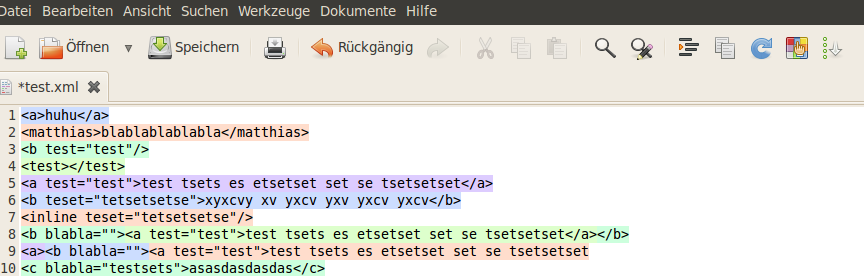
  • XML highlighting: After a double click on a XML-tag, the complete tree inside the selected tag will be highlighted. Depending on depth different colors will be used.
  • Selection highlighting: After a double click on any word, all occurrances of the selected word will be highlighted throughout the whole current document.
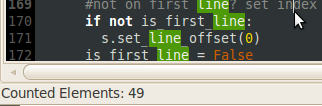
  • Search selection count: After a double click on any word, all occurrances of the selected word will be counted and the sum will be displayed in the status bar of the document.
  • Launch meld to compare files: A button is added to the toolbar of gedit to allow launching meld. Therefore a screen will be displayed: It allows selection of a file which will be compared to the current active file in gedit.

The plug-in is configurable: You can choose which plug-in you want to use. To make use of the meld launcher feature, an installation of meld is required. Refer to the README file for details.

If you want to use the plug-in, feel free to download it at github: http://github.com/mmuell23/mmuell23

To install from git:

git clone http://github.com/mmuell23/mmuell23.git
cp -r mmuell23/gedittools/* ~/.gnome2/gedit/plugins

Activate plug-in in gedit preferences and configure it as you wish.

Install from zip File:

There is also a ZIP file, which will not (always) include latest bug fixes: Download as ZIP

Extract all files and copy to ~/.gnome2/gedit/plugins

Activate plug-in in gedit preferences and configure it as you wish.

Update May 15:

  • Bug fix in search result counter: All words and characters are now being count correctly
  • Bug fix in XML highlighter: Closing Tags at line ends are now being treated correctly

Plug-ins for gedit: count results or compare files.

Wednesday, April 28th, 2010

Well, after I could count words in a gedit document based on a selection I made, I decided to add another missing feature:

I needed a diff tool to compare two files that are currently opened in gedit. Unfortunately, gedit doesn’t come along with these kind of features. So, another plug-in was needed.

Meldlauncher

What it does? It simply starts the open source diff & merge tool Meld using two documents opened in gedit. That’s why I called it meldlauncher. Therefore, if you want to use meldlauncher, you will need to have Meld installed. On Ubuntu do something like this:

sudo apt-get install meld

If there are only two documents opened in gedit, meldlauncher will launch Meld and pass those two files to it. If there are more than two documents opened, meldlauncher will open a selection dialog from which you can easily choose the document to compare the current document with.

I moved both the counter plug-in and the meldlauncher plug-in to Github. Feel free to grab it from there:

http://github.com/mmuell23/mmuell23

Count search results in gedit.

Tuesday, April 20th, 2010

Update May 5:
Count results are now being displayed in the Status Bar instead of an alert window. Also, there were a couple of bug fixes. Feel free to download the new version at the provided download link below or at github!

Lately I was looking for a small but missing feature in gedit: I needed to be able to count all occurrances of a selected word. This is a standard feature in many other editors such as Notepad++ in the Windows world, for example. However, I didn’t come across a solution on the net, so I decided to write a little plug-in myself.

What it does: After marking a word the plug-in counts all occurrances of the selection in the current document. It adds a new button to the toolbar and an entry to the menu right in the “Search” section. On top of that you may trigger counting the selection by hitting “CTRL+SHIFT+F”. A small pop-up window will appear and show the results of the search. The results will be displayed in the status bar of the window.

How to use it: Simply mark a word, and have a look at the statusbar: The number of search results will be displayed there.

If you find it useful, feel free to download the plug-in here:
Download gedittools plug-in for gedit.

Donwload at github:

http://github.com/mmuell23/mmuell23

git clone http://github.com/mmuell23/mmuell23.git
cp -r mmuell23/gedittools/* ~/.gnome2/gedit/plugins

Ubuntu und Abhängigkeiten

Tuesday, April 13th, 2010

Heute Morgen installierte ich das neue Ubuntu 10.04 Beta in einer Virtuellen Maschine.

Funktionierte wunderbar, bis auf die Tatsache, dass sich die Maschine bei der Installation der MySQL Gui Tools wohl ein wenig verschluckte. Jedenfalls installierte sich das Paket mit seinen “Kindern” mysql-query-browser und mysql-admin nicht korrekt.

Deinstallieren und neu installieren ließ es sich auch nicht. Es brach mit folgendem Fehler ab:

Entferne mysql-admin ...
dpkg (Unterprozess): kann installiertes post-removal-Skript nicht ausführen: Exec format error
dkpg: Fehler beim Bearbeiten von mysql-admin (--remove):
Unterprozess installiertes post-removal-Skript gab den Fehlerwert 2 zurück

Was tun? Viele Forenbeiträge liefen ins Leere und ich fand keinen Weg, die korrupten Pakte manuell zu löschen.

Die Lösung für dieses Problem war aber sehr leicht:

Es existieren im Verzeichnis /var/lib/dpkg/info Dateien mit Informationen zu allen installierten Pakten. Hier habe ich einfach alle Dateien rausgesucht, die für meine gesuchten MySQL Pakete relevant waren und sie aus dem Verzeichnis verschoben. Mit

apt-get remove mysql-admin mysql-query-browser

verschwanden dann auch alle Fehlermeldungen und Abhängigkeiten und ich konnte über

apt-get install mysql-query-browser mysql-admin

die Pakte sauber neu installieren.